

QuickMargin
direct print app, browser print label, websocket printing, label printer app, assign printer to label, automatic label printing
Quick Margin App – Smart Browser-to-Printer Label Printing
Streamline your printing process with our Quick Margin App — a powerful tool that connects your browser directly to label printers using WebSocket technology. No popups, no dialogs, no manual downloads — just seamless printing.
🚀 Key Features
- Direct Printing from Browser: Print instantly without print preview dialogs or OS-level interruptions.
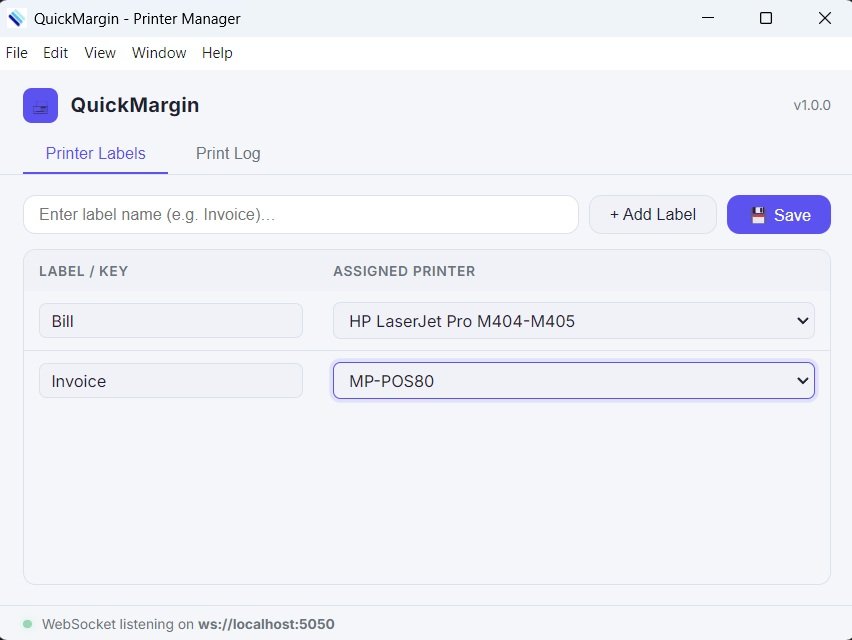
- Assign Printers to Labels: Map specific labels or documents to designated printers for full automation.
- WebSocket Communication: Real-time, persistent connection between your app and the printer system.
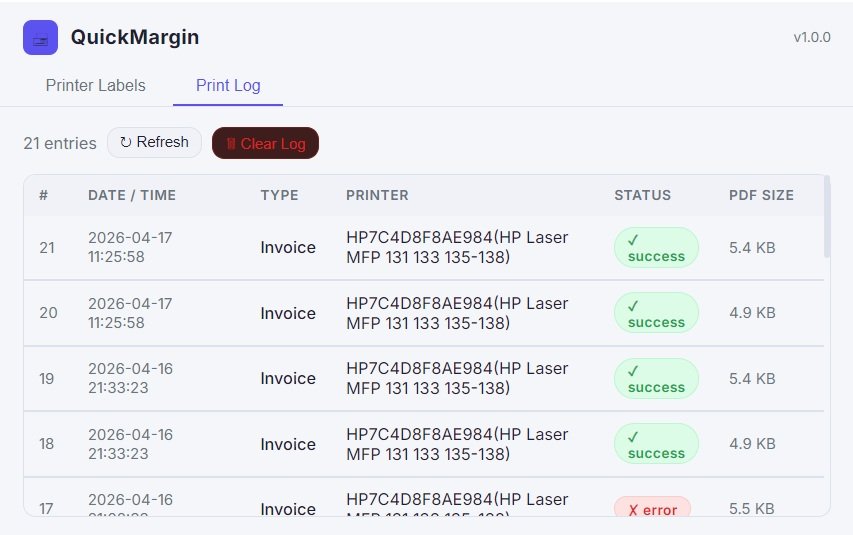
- Multi-Printer Support: Easily manage multiple printers for various departments or label types.
🛠️ How It Works
- Install the Quick Margin App on the system where printers are connected.
- Open the admin panel in your browser and assign printers to your label types (e.g., Shipping Label, Invoice, Barcode Tag).
- Your web app communicates with the Quick Margin App through a WebSocket URL (
ws://localhost:8080). - Send a print command from your browser — the content is sent to the assigned printer and printed immediately.
📦 Supported Content
Print plain text, formatted HTML, PDFs, or raw printer commands (e.g., ZPL, EPL, ESC/POS) depending on your printer's capabilities.
🔒 Security
All connections are local or authenticated to ensure safe and secure printing within your network.
🎯 Use Cases
- Warehouse shipping and barcode label generation
- POS (Point of Sale) receipts and kitchen orders
- Healthcare and lab specimen labeling
- Inventory and asset tagging
📖 User Manual
Step 1: Download and install the Quick Margin App on your local system.
Step 2: Ensure your printers are properly installed and named.
Step 3: Launch the Quick Margin App. It will expose a WebSocket on ws://localhost:PORT.
Step 4: From your web application, connect to the WebSocket and send the label content and assigned printer name as JSON.
var printService = new QuickMarginPrinting();
function SilentPrint(htmlContent) {
    // Sanitize HTML (optional but recommended)
    const cleanHTML = DOMPurify.sanitize(htmlContent);

    // Inject into hidden DOM container
    const container = document.getElementById('print-area');
    container.innerHTML = cleanHTML;

    const doc = new jspdf.jsPDF("p", "mm", [150, 420]);

    doc.html(container, {
        callback: function (doc) {
            const pdfDataUri = doc.output("datauri");
            const base64Data = pdfDataUri.split("base64,")[1];

            setTimeout(() => {
                printService.submit({
                    type: 'Invoice',
                    url: 'invoice.pdf',
                    file_content: base64Data
                });
            }, 1000);
        },
        x: 0,
        y: 0
    });
}
Step 5: The app receives the content and routes it to the specified printer immediately.
🎉 Benefits
- Reduce human error with automatic label routing
- Save time by skipping print dialogs
- Integrate easily into any browser-based system
- Works offline on local networks for maximum speed and security
Ready to make printing seamless and automatic? Try the Quick Margin App today.
Gallery
Related
More from Tools Desktop
This is currently the only published post in the category.